Paste to Markdown Converter
Click here and press Ctrl + V or Cmd + V to paste
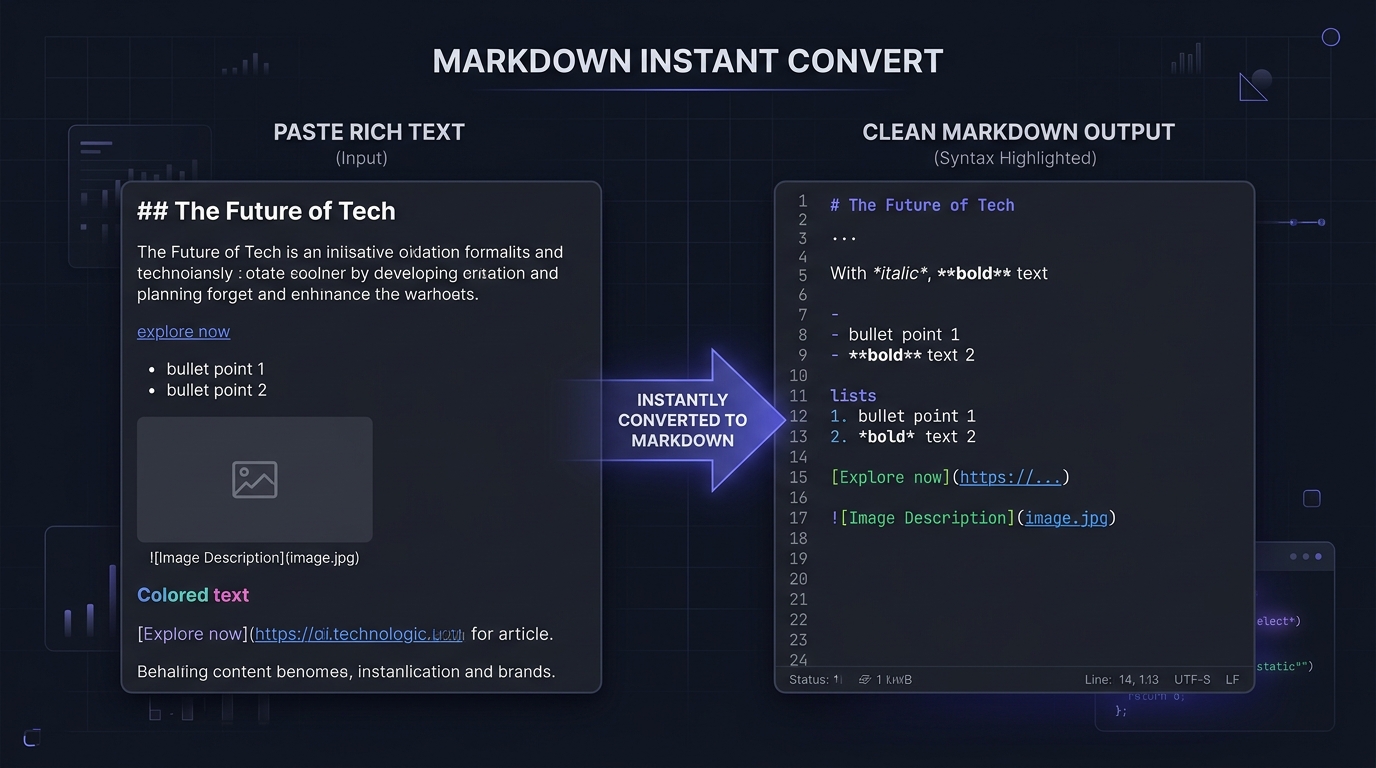
Works instantly with rich text copied from web pages, Google Docs, Word, Notion, and spreadsheet tables from Excel or Google Sheets.
Convert Clipboard Content, Web Pages, and Docs to Clean Markdown
Copying text from the web, Word, or Google Docs often leaves you with messy HTML tags, broken spacing, and unnecessary inline styles. Our free Paste to Markdown tool instantly cleans and translates your clipboard content into pure, standardized Markdown syntax. Everything processes client-side inside your browser, ensuring complete privacy with zero server uploads.
How to paste and convert to Markdown
- Step 1: Copy your content. Highlight text or tables in any web article, Google Doc, Word document, or spreadsheet, and press Ctrl+C (Cmd+C).
- Step 2: Paste into the tool. Click the dropzone above and press Ctrl+V (Cmd+V). The tool extracts rich HTML and converts it into Markdown instantly.
- Step 3: Review and export. Edit the source directly, check the live preview, and click Copy or Download .md to save your formatted document.
Why use this Paste to Markdown converter?
Optimized for accuracy, clean syntax, and instant clipboard transformation.
Smart Clipboard Parsing
Seamlessly captures rich HTML from web browsers, Google Docs, Microsoft Word, Notion, and Confluence, preserving your original document hierarchy.
Spreadsheet to GFM Tables
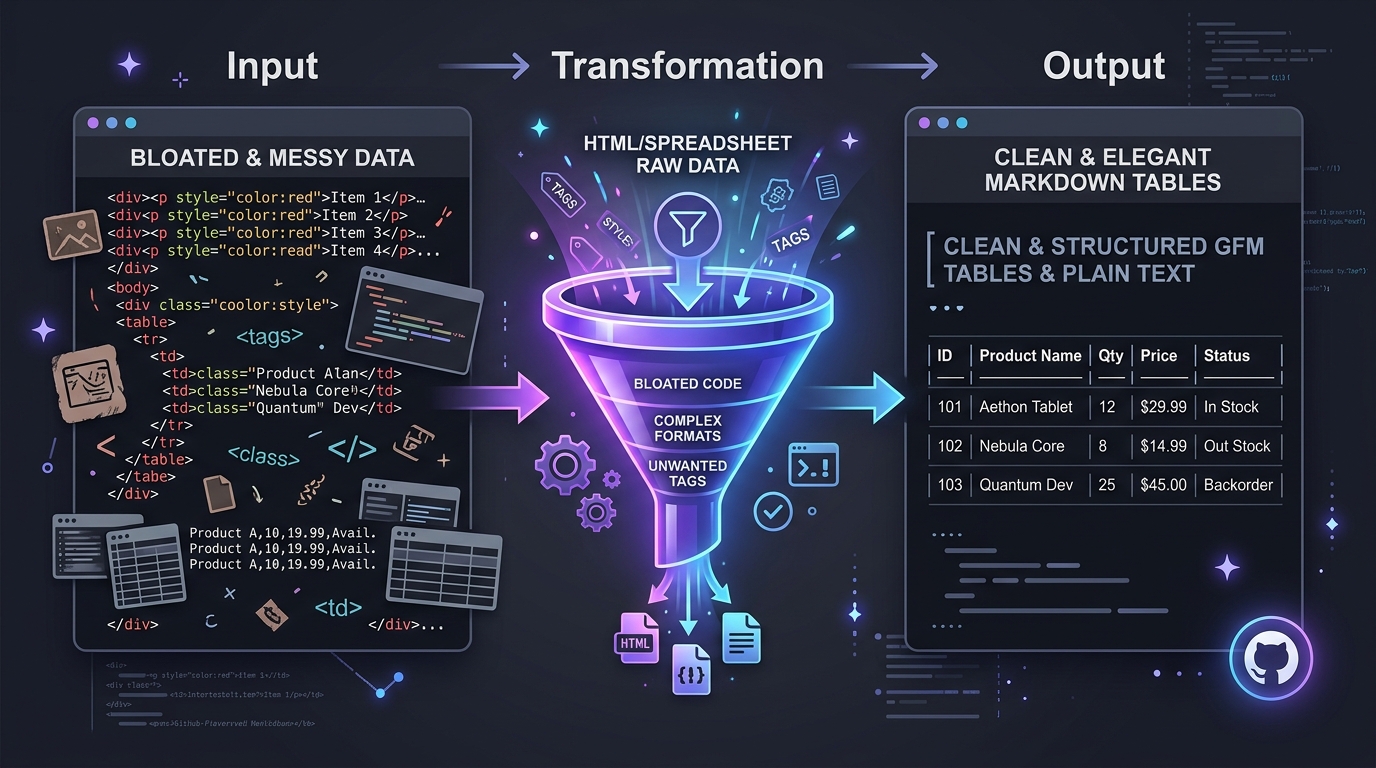
Copy cell ranges directly from Microsoft Excel or Google Sheets. The converter automatically creates properly aligned GitHub Flavored Markdown tables.
Cleans Tracking Parameters
Automatically removes clutter like utm_source, utm_medium, and marketing tracking queries from URLs, keeping your links clean and permanent.
100% Private In-Browser Processing
No servers, no databases, and no external tracking. Your sensitive documents, code snippets, and research notes stay securely on your local device.
Live Split-Screen Preview
Proofread and edit the generated Markdown on the left while viewing the live rendered HTML preview on the right in real time.
Unlimited and Free Forever
Convert articles, meeting notes, tables, and documentation as often as you want without paywalls, subscriptions, or daily limits.
Say goodbye to messy paste formatting
When you paste content directly from web browsers or office suites, you often inherit hidden spans, font styling, hardcoded widths, and non-standard markup.
Converting through our tool strips the bloat while preserving what actually matters: headings, bold emphasis, italics, hyperlinks, code snippets, blockquotes, and tables.
Want to export your document as a PDF? Use our Markdown to PDF converter, or generate HTML for web publishing with our Markdown to HTML tool.
Streamline your daily writing and documentation workflow
Content Writers & Technical Bloggers
Quickly transfer drafts from Google Docs or Word into Git-based Markdown blogs (Hugo, Astro, Jekyll, or Ghost) without wrestling with ugly HTML paste artifacts.
Engineers & Documentation Teams
Clip API documentation, code examples, and architecture decisions from web pages directly into project READMEs and wiki pages.
Data Analysts & Project Managers
Convert financial tables, KPI trackers, and spreadsheet summaries from Excel into Markdown tables ready for GitHub issues and pull request descriptions.
Knowledge Workers & Note-Takers
Clip web research, quotes, and reading lists into personal knowledge management vaults like Obsidian, Logseq, and Notion with zero friction.
Tips for getting the best Markdown output
- Copy from rendered view: To preserve headings and lists from Google Docs or Word, copy directly from the rendered document view rather than the source text.
- Direct spreadsheet conversion: Simply select cells in Excel or Google Sheets, copy them, and paste them here to get an instant Markdown table.
- Interactive editing: You can edit the converted Markdown directly in the editor pane before copying or downloading.
- Need table formatting help? Try our dedicated Markdown table generator, or reference standard tags in our Markdown cheat sheet.
Paste to Markdown FAQs
Common questions about converting clipboard data and rich text to Markdown.